
TheHurrican Tech Desk — September 20, 2026
Not every pair of AirPods can block out noise, which trips people up more than you’d think. Only certain models have the hardware for it. Own the base AirPods 4? No luck there. You’ll need AirPods 4 with ANC, AirPods 5, either AirPods Pro generation, or an AirPods Max. Here’s what actually works, once you’ve got the right pair in hand.
Quick Answer: How to Turn on Noise Cancellation
- Put both AirPods in your ears.
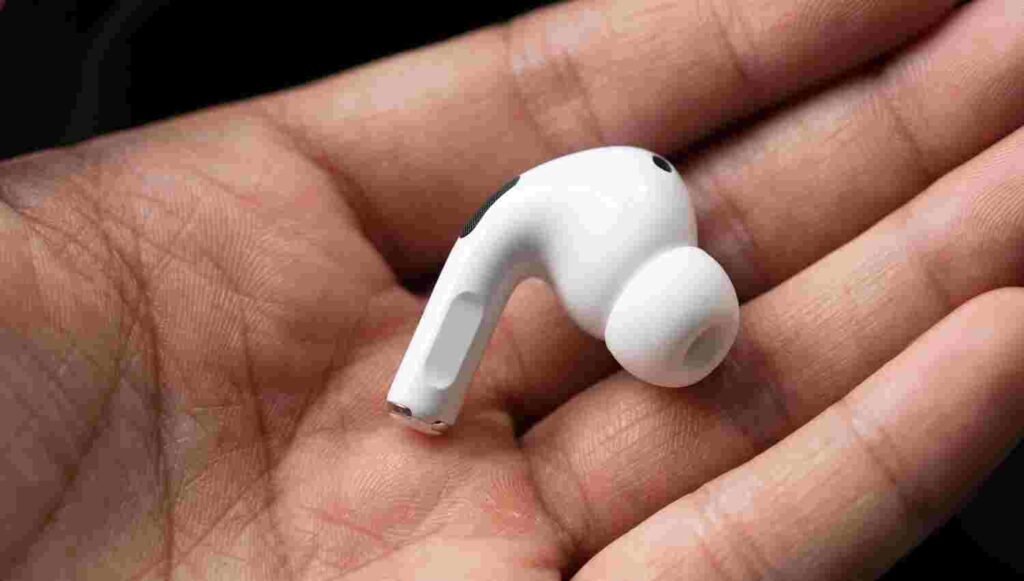
- On AirPods Pro or AirPods 4/5 (ANC): press and hold the force sensor on either stem until you hear a chime
- On AirPods Max: press the dedicated Noise Control button on the right ear cup.
- Or, from your iPhone or iPad: swipe down to open Control Center, touch and hold the Volume slider, then tap Noise Cancellation.
Which Models Actually Support It
| AirPods Model | Active Noise Cancellation? | How to Toggle |
| AirPods 4 (Standard) | No | N/A |
| AirPods 4 (with ANC) | Yes | Stem force sensor / Control Center |
| AirPods 5 | Yes | Stem force sensor / Control Center |
| AirPods Pro (1st, 2nd & 3rd gen) | Yes | Stem force sensor / Control Center |
| AirPods Max (1st & 2nd gen) | Yes | Dedicated Noise Control button |
First, Check What You Actually Own
Worth confirming before anything else — plenty of people assume their AirPods do more than they actually do. Standard AirPods 4 skips noise blocking entirely, full stop. The ANC version doesn’t, and neither do AirPods 5, AirPods Pro 2, AirPods Pro 3, or the Max line. Not sure which one’s in your ears right now? Settings, then Bluetooth, then tap the AirPods listed there. Model name’s right at the top.
Turning It On Takes About Two Seconds
Squeeze the stem and hold it. Genuinely that simple, on the Pro models and both the 4 (ANC) and 5. You’ll hear a little chime confirming the switch went through. Keep holding, and you’ll cycle through every option — cancellation, transparency, adaptive, and plain off.
Max owners get a different setup entirely. There’s a physical button sitting right beside the Digital Crown on top. One press, mode changes. No stem to squeeze here since, well, there’s no stem.
Want More Control? Head to Your Phone
Sometimes a quick squeeze isn’t precise enough, and you want to actually see what’s selected. Pull up Control Center. Press and hold on the volume bar — a little panel slides up showing your options laid out. Pick whichever one matches what you’re doing right now.
Settings works too, if you’d rather go that route. Tap into Settings, find your AirPods near the top, then look under Listening Mode. Same deal on iPad, incidentally — nothing changes there.
So What’s Actually Different Between the Modes?
Noise cancellation’s job is pretty singular: shut the outside world out as much as physically possible. Mics facing outward pick up ambient sound, and your AirPods respond by generating the opposite waveform to cancel it before it hits your eardrum. There’s an inward mic too, catching whatever manages to sneak past the seal anyway. This is what most people picture when they say noise cancellation AirPods — the deep, almost eerie quiet.
Transparency flips that entirely. Rather than blocking sound, it actively lets it through, so you can hear someone talking to you or catch a boarding announcement without yanking an AirPod out.
Adaptive tries to split the difference, honestly. It reads the room, so to speak — leans harder into cancellation somewhere loud, eases up somewhere quiet. You can push that balance yourself too, nudging it one direction in Settings if the automatic version isn’t quite matching what you want.
And Off is exactly what it sounds like. Nothing’s happening beyond your music playing — no cancellation, no transparency, just audio.
Fit Matters More Than People Realize
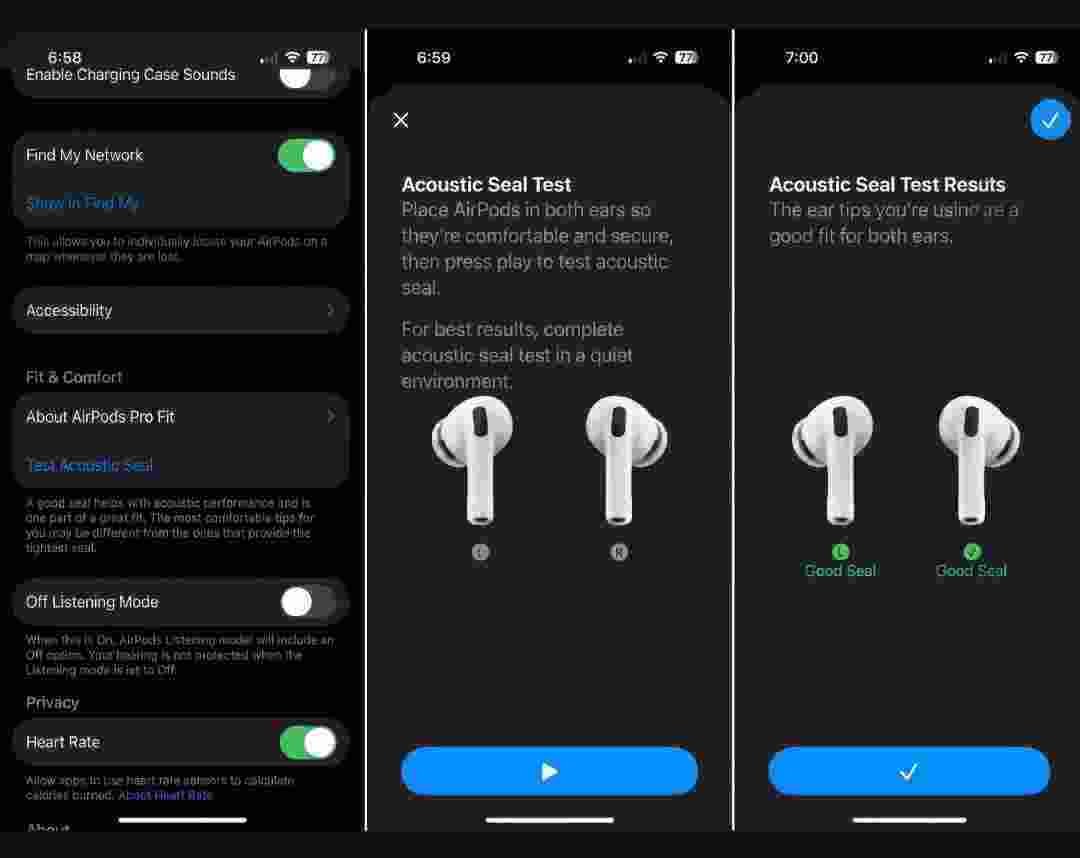
Here’s something that trips a lot of people up: noise cancellation on the Pro models leans almost entirely on getting a proper seal in your ear canal. Loose tip, sound sneaks in around the edges, and suddenly cancellation feels weak even though nothing’s actually broken. Apple ships multiple tip sizes specifically because one size rarely fits everyone — worth trying a couple if the stock one doesn’t feel snug.
There’s an actual test for this too. Settings, tap your AirPods Pro, then Ear Tip Fit Test. Plays a short sound, measures how sealed each ear actually is, and tells you flat-out whether you need a different size.
When Cancellation Just Isn’t Cutting It
A handful of things usually explain this:
- Bad tip fit. Run that Ear Tip Fit Test and swap sizes if it flags a leak.
- Grime in the mesh. Wax and pocket lint build up over time and muffle the mics. A dry, soft cloth handles this fine.
- A stuck update. AirPods update quietly while charging near your phone, but occasionally that process stalls. Leave them in the case, near your iPhone, Bluetooth on, and give it time.
- Wrong mode picked. Easy to squeeze past the setting you actually wanted without noticing — double-check you’re really on Noise Cancellation and not Adaptive.
- One AirPod sitting wrong. Pop both out and reseat them, making sure each clicks properly.
Does This Drain the Battery Faster?
A bit, yeah. Active cancellation means constant processing running in the background, so it pulls more power than Transparency or Off would. Not a massive gap, but if you’re squeezing every last bit of listening time out of a charge, switching modes helps stretch things a little further.
Running This on iOS 27
Software plays a role here too. iOS 27 landed this month with its big Siri AI rebuild, and asking Siri to handle your AirPods actually works reliably now, rather than needing a manual toggle every single time like before. Just say “Hey Siri, turn on Noise Cancellation” or “Hey Siri, switch to Transparency mode,” and it switches instantly. If you’ve already updated, the AirPods settings screen should look identical to what you’re used to — nothing about noise cancellation itself changed with this release.
Pairing With a Brand-New iPhone
If you just grabbed a new phone, worth knowing the iPhone 18 Pro and Pro Max launched this same month, and pairing AirPods works exactly the same as it always has. Nothing about the new hardware changes anything on the AirPods side.
What About Pixel Buds Instead?
Quick tangent if you’re weighing platforms. Google’s take on noise cancellation looks fairly similar on the surface, and the Pixel 11 Pro — Google’s current flagship — pairs with Pixel Buds using a comparable set of modes. Controls differ enough between the two that hopping from AirPods to Pixel Buds takes a few minutes to get used to. Same basic idea underneath, though: block what you don’t want to hear, on command.
Frequently Asked Questions
How do I turn on noise cancellation on AirPods?
Squeeze and hold the stem until you hear a chime, or open Control Center, press and hold the volume slider, then pick Noise Cancellation from the panel.
Which AirPods actually support noise cancellation?
AirPods 4 (ANC version), AirPods 5, AirPods Pro 2, AirPods Pro 3, and both AirPods Max generations. Standard AirPods 4 doesn’t have it.
Why does my noise cancellation feel weak?
Almost always a fit problem. Try the Ear Tip Fit Test in Settings, swap tip sizes, and give the mesh a clean if it’s been a while.
Does noise cancellation eat more battery?
Slightly, yes. It runs constant processing, so it draws a bit more power than Transparency or Off.
Noise Cancellation vs. Adaptive — what’s the actual difference?
Noise Cancellation blocks sound at full strength, all the time. Adaptive shifts automatically between cancellation and transparency depending on how loud your surroundings are.
This article reflects Apple’s current AirPods listening mode features as of September 20, 2026.