

By TheHurrican Tech Desk | Updated September 17, 2026
Quick Steps: How to Split Screen on iPad
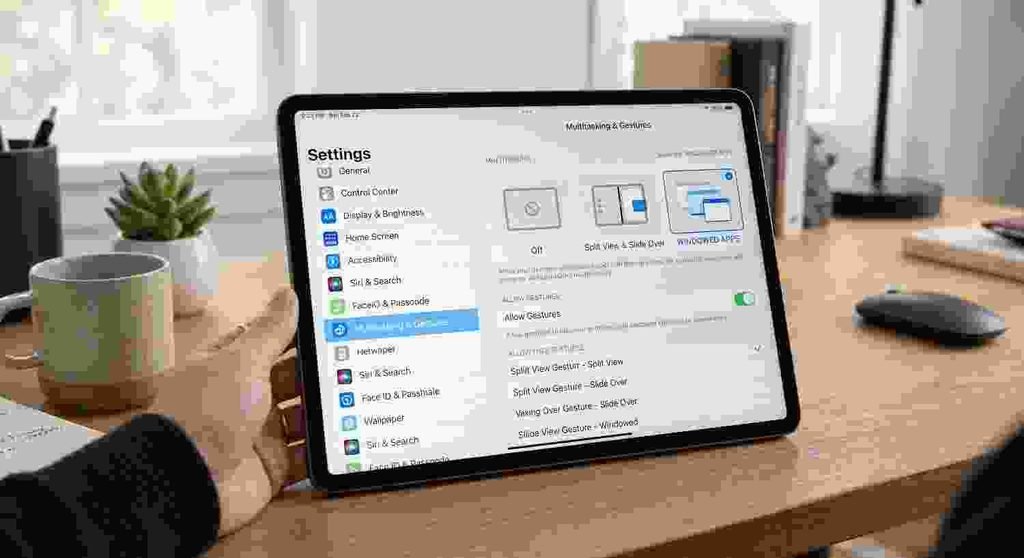
- Open Settings, then tap Multitasking & Gestures.
- Select Windowed Apps (or Stage Manager for a more flexible, floating layout).
- Open the first app you want to use.
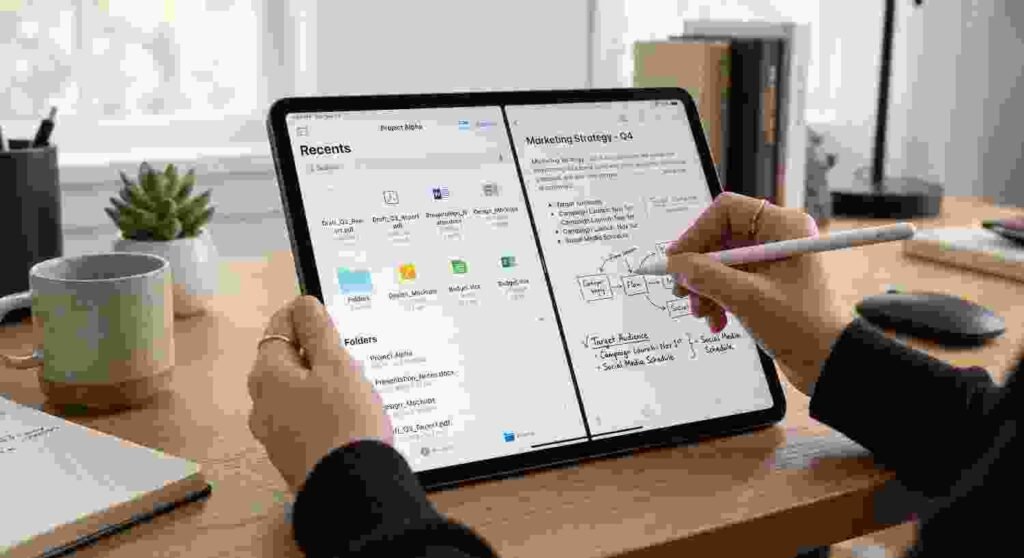
- Drag a second app from the Dock, App Library, or Spotlight to the left or right edge of the screen.
- The two apps snap into place side by side — drag the divider between them to resize.
If you’re on an older iPad still running iPadOS 18 or earlier, the classic method still applies instead: tap the three dots at the top of the screen, tap Split View, then choose a second app. Full detail on both methods, plus troubleshooting, is below.
Quick heads up before the details: if you’ve read an older guide telling you to tap three dots and hit “Split View,” that’s outdated for most current iPads specifically. Apple rebuilt multitasking starting with iPadOS 26 — released in 2025 as part of a company-wide switch to year-based version numbers, skipping iPadOS 19 entirely — and split screen now lives inside a Settings toggle called Windowed Apps rather than a menu inside the app itself.
Quick Reference: Which Method Applies to You
| Your Situation | What to Do |
|---|---|
| Running iPadOS 26 or 27 | Settings > Multitasking & Gestures > Windowed Apps, then drag a second app to the screen edge |
| Want floating multi-window setup | Same Settings menu, choose Stage Manager instead |
| Older iPad stuck on iPadOS 18 or earlier | Old three-dot method still applies (details below) |
| Just want one floating mini-window | Slide Over returned in iPadOS 26.1 — single window, not a stack |
Why Everyone’s Getting Different Answers on This
Here’s the thing, and it’s honestly not really anyone’s fault — half the search results on this topic are just flat-out wrong at this point, because a ton of guides were written before Apple changed everything and never got touched since. For basically a decade, split screen meant one thing and one thing only: tap the three dots up top, hit Split View, pick your second app, you’re done. That was the process from iOS 9 all the way through iPadOS 18. Consistent, boring, worked exactly the same every single time.
Then iPadOS 26 showed up and blew that whole system up. Apple rebuilt multitasking around window controls instead, and now which features you even get access to depends on a mode you’ve picked in Settings beforehand — not some menu tucked inside whatever app happens to be open at the time. So if you’re reading two articles that flatly contradict each other on this, that’s probably why. They’re both right. Just for two different iPads living in two different years.
Step One: Go Check Which Mode You’re Actually In
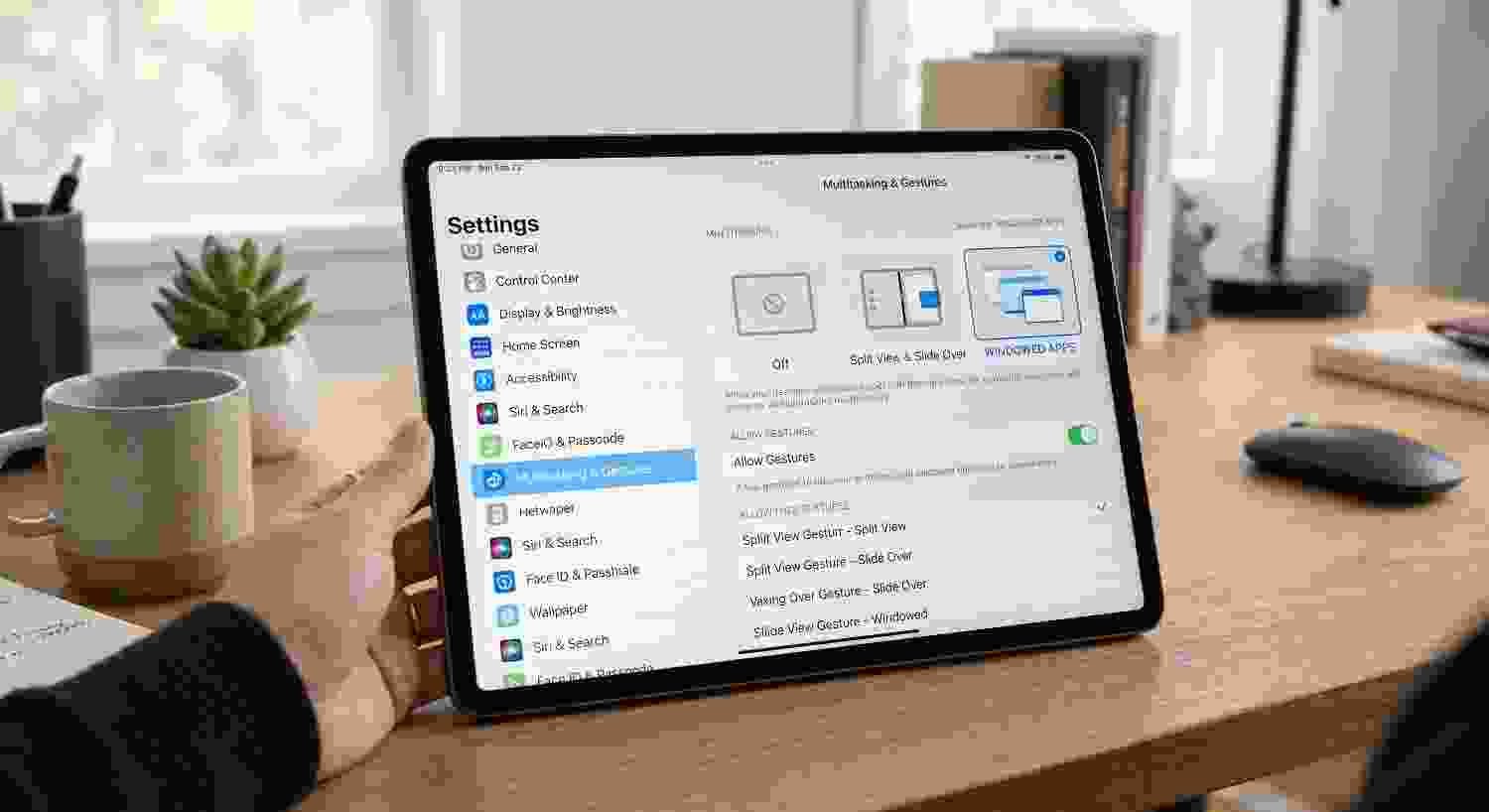
Before you do anything else, pop open Settings > Multitasking & Gestures. Three options waiting for you there: Full Screen Apps, Windowed Apps, Stage Manager. This one toggle is basically deciding everything else downstream, so it’s worth actually understanding what each does instead of just clicking the first thing that sounds right.
- Full Screen Apps — exactly what it sounds like, one app, whole screen, no split, no floating anything. Fine if multitasking’s not really your thing.
- Windowed Apps — this is the one that gets you closest to the old-school split screen most people remember and actually want.
- Stage Manager — more of a desktop-style setup, several windows open at once, overlapping, resizable, kind of like how a Mac handles things.
If you just want straightforward side-by-side, go with Windowed Apps. That’s the one.
Step Two: Flip on Windowed Apps
Tap into Windowed Apps from that same menu. Your whole interface shifts a bit once you do — small window controls start showing up on open apps where that old three-dot icon used to live, centered at the top.
Step Three: The Actual Splitting Part
Windowed Apps is on, good. Now open whatever app you want first. Then pull up a second one — Dock works, App Library works, Spotlight search works too if you’ve got a keyboard attached — and drag it right up against the left or right side of the screen until it snaps into place next to the first one.
Once both are open, there’s a divider sitting between them, and you can drag that left or right to change how much room each app gets. Want to swap one out for something else entirely? Just drag a different app from the Dock right onto the one you want gone — same trick as before, nothing new there.
Wait, What Happened to Slide Over?
Good question, actually, and it’s kind of a whole saga on its own. Slide Over — the little floating window that sat on top of everything else — genuinely vanished for a while when iPadOS 26 first rolled out. That upset a fair number of people who used it constantly, understandably. Apple brought it back in iPadOS 26.1, though not quite the same as before — instead of stacking and cycling through several floating apps like the old days, you’re stuck with just one floating window at a time now. Still useful. Just smaller than what it used to be.
Does Your iPad Even Support This Stuff?
Worth checking before you go hunting for a setting that might not even exist on your particular device. When iPadOS 26 first rolled out, Apple made all three modes — Full Screen, Windowed, Stage Manager — available across a genuinely broad slice of the lineup: every iPad Pro going back to the first 11-inch model, iPad Air from the third generation onward, the fifth-generation iPad mini, and the eighth-generation standard iPad. Pretty generous cutoff, honestly.
This year’s iPadOS 27 update trims that list slightly. The fifth-generation iPad mini and the eighth-generation iPad — both on the older end of that supported range to begin with — lost support with this release. So if multitasking suddenly looks different on your device, or a setting you expected just isn’t there, one of those two models falling off the list is the likely explanation.
Got an Older iPad? Here’s the Old-School Way
If you’re not on iPadOS 26 or later yet — maybe your iPad’s not eligible, maybe you just haven’t updated — the classic method still works exactly like it always did. Open whichever app you want to use first, then find that three-dot icon centered along the top edge of the screen and tap it. From the small menu that pops up, choose the Split View option — you’ll recognize it by the icon showing a half-filled rectangle. That moves your current app aside and drops you back at the Home Screen so you can pick a second app to fill the other half.
Heads up, not every app plays along with this — never has, honestly, since the feature first launched years ago. So if something doesn’t offer the option, that’s usually just the app, not you doing something wrong.
Quick Fixes If Something’s Not Working
Before assuming your iPad’s broken, run through these:
- Make sure the app actually supports it. Some apps just never bothered building in Split View or windowed support — that’s on the developer, not a Settings toggle you’re missing somewhere.
- Double-check Multitasking & Gestures. On iPadOS 26 or later, that old three-dot menu simply won’t show up if you’re sitting in Full Screen Apps mode — that mode disables split screen entirely, by design, not by accident.
- Update if you’re behind. Older iPadOS builds can act weird with multitasking, especially right after something as big as version 26 dropped.
- Just restart it. Sounds almost too obvious to mention, but genuinely, half these little glitches clear right up after a normal restart.
Combos That Actually Work Well Together
Not every pairing’s equally useful, but a few keep coming up in how people actually use this day to day:
- Safari paired with Notes — reading something on one side while jotting down what matters on the other
- Files running alongside pretty much any app — makes dragging attachments, photos, or documents across apps painless
- Word or Excel next to whatever you’re referencing — genuinely useful when you’re actually trying to get work done
- Google Docs paired with a source you’re checking against — handy for anyone collaborating while fact-checking on the fly
Does It Work the Same Across Every iPad Model?
Mostly, yeah — assuming your specific model actually supports whichever iPadOS version you’re running, which honestly is the real variable here, not the model itself once you clear that bar. Worth pointing out too, since this is purely a software thing tied to which iPadOS build you’re on, not something that shifts based on which iPhone you happen to own alongside it. If you’re curious what’s been happening on the iPhone side lately, we’ve got the iPhone 18 Pro’s design breakdown and its confirmed dimensions covered separately — none of it touches how your iPad handles windows, obviously, but worth a look if you’re already deep in Apple’s whole ecosystem. Same goes for the iPhone 18’s release timeline and its confirmed colors, if a phone upgrade’s on your radar too while you’re at it.
One More Thing — iOS 27 and iPadOS 27 Shipped Together
Worth mentioning since the timing’s directly connected to this whole multitasking shakeup. iPadOS 27 landed the same week as iOS 27 — both part of the same big software wave that also brought the Gemini-powered Siri AI overhaul to iPhone. If you updated and things feel a little off right after, that’s not unusual. This was a genuinely massive release across Apple’s whole lineup, not some routine point update, so give it a bit of settling-in time before assuming something’s actually broken.
Do You Even Need Windowed Apps or Stage Manager?
Honestly? Depends entirely on how you actually use the thing day to day. Mostly watching video, scrolling, casual browsing — Full Screen Apps is probably simpler, and you might not need to touch any of this at all. But if you’re running an iPad Pro or Air with a keyboard clipped on, actually trying to get work done — kind of like how someone might lean on a Galaxy S26 Ultra or a foldable for multitasking on the Android side, just with more screen real estate here — Windowed Apps or Stage Manager is genuinely going to earn its keep. Even the new iPhone Duo is leaning on a similar side-by-side philosophy for its unfolded screen, so this whole “drag two apps next to each other” idea clearly isn’t just an iPad thing anymore — feels like it’s becoming Apple’s default answer whenever a screen’s big enough to fit two things at once.
Frequently Asked Questions
How do I split screen on iPad in 2026?
Go to Settings > Multitasking & Gestures, pick Windowed Apps, then drag a second app from the Dock, App Library, or Spotlight to the edge of the screen so it sits beside the first one.
Why can’t I find the old three-dot Split View menu?
Apple replaced that whole system starting with iPadOS 26. It’s controlled through the Multitasking & Gestures setting now instead of a menu buried inside each app.
What happened to Slide Over?
Pulled entirely when iPadOS 26 first launched, then brought back in 26.1 — but as a single floating window this time, not the stack of apps it used to let you cycle through.
Does every iPad support split screen on iPadOS 26 or 27?
Most recent ones do, though iPadOS 27 specifically dropped support for the fifth-gen iPad mini and the eighth-gen iPad.
What’s actually different between Windowed Apps and Stage Manager?
Windowed Apps gets you a straightforward side-by-side layout, close to classic Split View. Stage Manager’s more flexible — overlapping, resizable windows, closer to a desktop feel.
This article reflects Apple’s current iPadOS 26 and iPadOS 27 multitasking systems as of September 17, 2026.