

By TheHurrican Tech Desk | Updated September 20, 2026
Quick Steps: Connect Keyboard to iPad
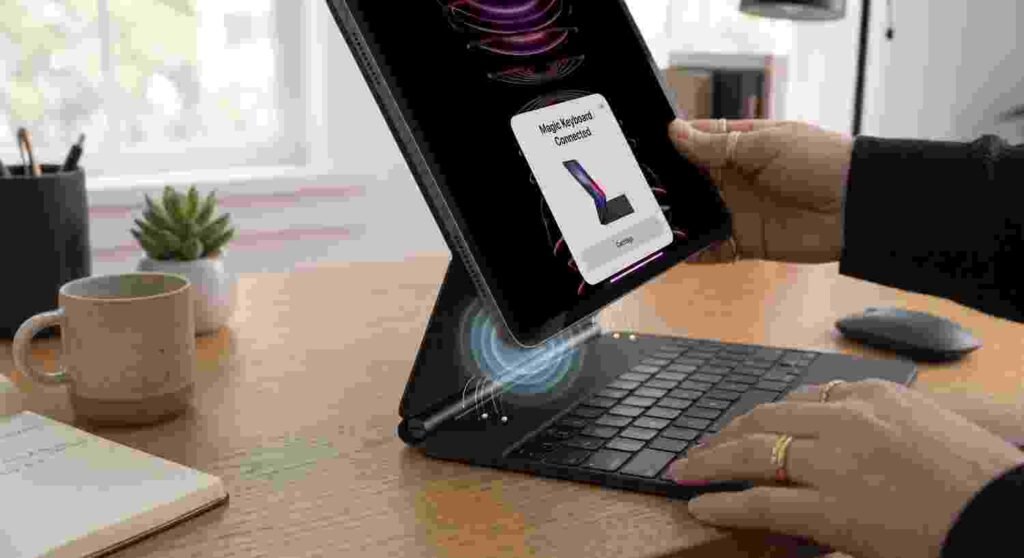
- Magic Keyboard or Magic Keyboard Folio built for your iPad? Just snap it on. No pairing, nothing.
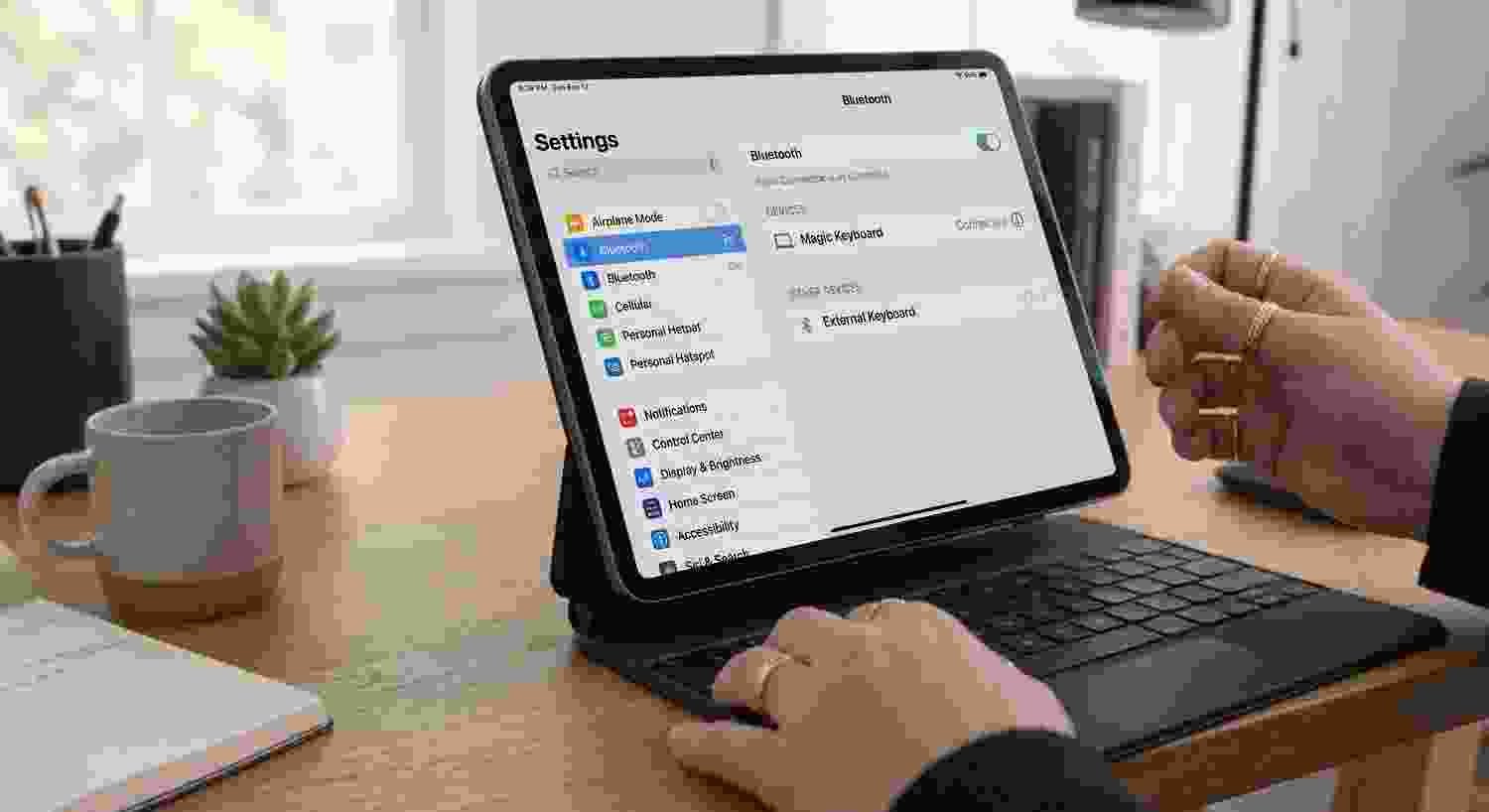
- Any other Bluetooth keyboard? Settings > Bluetooth, turn it on, put the keyboard into pairing mode.
- Tap its name once it shows up under Other Devices.
- Hit any key when it asks you to confirm.
- Done — it just remembers you from here on, as long as Bluetooth’s on and you’re close enough.
Full version, plus the newer USB-C trick and what to do when absolutely nothing connects, below.
Honestly, there are two totally different situations hiding behind “how do I connect keyboard to iPad.” Two. Not one. And mixing them up is where basically all the confusion online comes from. One’s Apple’s own Magic Keyboard or Magic Keyboard Folio — built specifically to clip onto your iPad and turn it into something laptop-shaped. The other’s everything else. A standalone Bluetooth Magic Keyboard. Some third-party thing you grabbed off Amazon at 2am. Whatever isn’t physically molded to your exact iPad. They connect in genuinely different ways, so figure out which camp you’re in before you even open Settings.
Magic Keyboard or Magic Keyboard Folio: The Easy One
If you bought this specifically because it was listed as compatible with your iPad — built-in trackpad, the kind your iPad literally snaps into — good news, this is the simple version. Honestly it’s the whole reason people pay extra for this over dealing with Bluetooth at all.
Lay it flat. Hinge pointing away from you. Pop the lid open to whatever angle feels right — doesn’t matter, whatever’s comfortable. Then set your iPad down onto it, lining the rear camera up with that cutout near the top. That’s it. Genuinely. No Bluetooth toggle, no pairing screen, nothing to charge separately either — it pulls power straight from the iPad through something called the Smart Connector, a little strip of magnetic contacts sitting right on the edge. Tap any key, iPad wakes up. Tap again, you’re at the Lock Screen. Face ID, Touch ID, or just type your passcode right there on the keyboard, whichever you’d rather do.
If you’re trying to connect keyboard to iPad this way and it’s just… not happening, nine times out of ten it’s one of three things: the iPad isn’t seated right, there’s gunk on the connector, or there’s a second case underneath blocking the contacts from actually touching.
Any Other Bluetooth Keyboard
This is the route for a standalone Magic Keyboard — the flat one, works with Macs too — or really any third-party keyboard that isn’t shaped specifically for your iPad. Here you’re doing a real Bluetooth pairing, not a magnetic snap-and-go.
Keyboard’s on. And if it’s battery-powered, actually charged — worth checking that first, honestly, half of these “broken” keyboards just need batteries, that’s genuinely it half the time. On your iPad: Settings, Bluetooth, flip it on if it isn’t already. Your keyboard should pop up under Other Devices within a few seconds. Tap it. Might ask you to type a short code shown on screen, or just press any key to prove it’s really you. Once that’s over, you’re paired — and reconnecting later’s automatic, as long as Bluetooth’s on and you’re within range. Roughly 33 feet before it drops off.
One thing worth knowing if you bounce a keyboard between a Mac and iPad regularly: if it’s already paired somewhere else, you’ll usually need to unpair it there first before you can connect keyboard to iPad successfully. Bluetooth gear doesn’t always juggle multiple pairings gracefully, annoyingly.
The Newer USB-C Trick (iPadOS 26.5 and Up)
Worth flagging, genuinely useful, and a lot of people still haven’t noticed it exists. Starting with iPadOS 26.5, plugging one of Apple’s own Magic accessories — Keyboard, Trackpad, Mouse — into your iPad with a USB-C cable does more than just make a temporary wired connection happen. It quietly sets up a Bluetooth pairing in the background at the same time, one that sticks around even after you unplug. So if digging through Bluetooth settings sounds annoying, plugging in once and then unplugging is now a totally legitimate way to connect keyboard to iPad without touching a single toggle.
Can You Connect a Regular Wired Keyboard?
Yes, and this one gets overlooked constantly — a lot of schools and offices specifically hand out plain USB-C or USB-A keyboards rather than anything Bluetooth or Apple-branded. Plug a standard wired USB-C keyboard directly into your iPad’s port and it just works. No drivers, no setup screen, no Bluetooth toggle to fumble with. If you’ve got an older USB-A keyboard instead, a simple USB-C to USB-A adapter (or a small USB hub) bridges the gap the same way. iPadOS recognizes standard USB keyboards the moment they’re plugged in — genuinely the simplest of all four connection types here, since there’s no pairing step at all to get wrong.
Quick Comparison: Every Keyboard Type at a Glance
| Keyboard Type | Connection Method | Requires Bluetooth? | Charging Required? |
|---|---|---|---|
| Magic Keyboard (iPad Case) | Smart Connector (magnetic snap) | No | No — powers from iPad |
| Magic Keyboard (Standalone) | Bluetooth or USB-C handshake | Yes | Yes — rechargeable |
| Third-Party Bluetooth | Bluetooth pairing code/button | Yes | Yes — batteries or USB-C |
| Standard Wired Keyboard | Direct USB-C cable or hub | No | No — plug and play |
Reconnecting Down the Line
Once you’ve paired something the first time, daily use should be painless from here. Smart Connector keyboards reconnect the second you snap the iPad back on — nothing to think about, ever. Bluetooth keyboards reconnect automatically once both devices are in range with Bluetooth switched on, though if yours has a physical power switch, flipping it off and back on sometimes nudges a stuck connection back to life.
When Nothing Connects
Before deciding the keyboard’s dead or your iPad’s just glitching out, run through this. In order, ideally:
- Update iPadOS. Some keyboards have minimum requirements — the Magic Keyboard built for iPad Air, for instance, won’t behave right on older software.
- Clean the Smart Connector. Soft, lint-free cloth, wipe both sides — keyboard and iPad edge. Fixes way more of these problems than you’d expect.
- Pull off any extra case. A second case stacked underneath is a surprisingly common reason the contacts never actually make contact.
- Check the battery. For Bluetooth keyboards specifically, a low battery disguises itself as a pairing failure constantly.
- Unpair, start over. Bluetooth settings, tap the info icon next to the keyboard, Forget This Device, then run through pairing again fresh.
- Just restart the iPad. Boring advice, I know, but it genuinely clears up a huge chunk of stuck Bluetooth issues that nothing else touches.
Does This Work the Same Across Every iPad?
Mostly, yeah, for Bluetooth keyboards specifically — any iPad on a reasonably current iPadOS can connect keyboard to iPad over Bluetooth without much drama. Smart Connector stuff is narrower, though, since Apple builds each Magic Keyboard and Folio for specific iPad Pro or Air generations, not universally. If you’re planning to multitask with a keyboard attached, our split screen guide covers the Windowed Apps and Stage Manager setup you’ll actually be living in once you’ve got a full keyboard in hand.
Keyboard Plus Apple Pencil? Two Separate Things
If you’re setting your iPad up as an actual work device — not just a big iPhone, an actual work device — odds are decent you’re pairing a keyboard and a Pencil, not just one. Good news: they’re completely independent processes. Connecting a keyboard doesn’t touch Pencil pairing at all. Vice versa too. Haven’t gotten your Pencil sorted yet? Our full Apple Pencil pairing guide walks through all four current models and which method each one uses.
What About the iPhone Duo — Keyboard Support There?
Not really, at least not in any dedicated way. The iPhone Duo handles standard Bluetooth keyboards the same as any other iPhone, but there’s no Apple-made folio keyboard built specifically for it the way there is for iPad Pro and Air. If serious external-keyboard typing actually matters to you, iPad’s still the more purpose-built option in Apple’s current lineup.
Does iOS 27 or iPadOS 27 Change Any of This?
Not really — same process either way, whether you’re on iPadOS 26 or the newer iPadOS 27 that shipped alongside iOS 27 this month. That USB-C shortcut showed up earlier, back with iPadOS 26.5, and carried over unchanged into the newer release.
Quick Aside: What Else Landed This Fall
If you’re setting up new iPad accessories alongside other recent Apple purchases, worth a mention: the iPhone 18 Pro and Pro Max launched around the same time as iOS 27, now in four finishes — Black, Silver, Glacier, and the new Burgundy — on aluminum rather than titanium this generation, something we got into more in our iPhone 18 design breakdown. Curious about the actual size and weight versus last year? Our iPhone 18 Pro thickness piece has those numbers. None of it changes how you connect keyboard to iPad, obviously, just useful context if you’re deep in an Apple upgrade season right now.
How Does This Compare to Android Tablets?
Quick sideways glance, if you’re weighing platforms. Samsung’s approach with something like the Galaxy S26 Ultra leans on standard Bluetooth pairing for external keyboards too — no Smart Connector equivalent baked in the way Apple’s done for iPad. So while Bluetooth-side stuff feels nearly identical across platforms, Apple’s magnetic, zero-pairing option for iPad really is unique to how Apple’s built its own accessories specifically.
Frequently Asked Questions
How do I connect keyboard to iPad without Bluetooth?
If you’ve got a Magic Keyboard or Magic Keyboard Folio built for your iPad, just snap it on — it connects instantly through the Smart Connector, no Bluetooth pairing needed at all.
Why won’t my Bluetooth keyboard connect to my iPad?
Usually a dead battery, Bluetooth switched off, the keyboard still paired somewhere else, or old iPadOS. Work through those one at a time before blaming the keyboard.
Can I use a USB-C cable to connect keyboard to iPad?
Yes, for Apple’s own Magic accessories. Since iPadOS 26.5, plugging one in via USB-C sets up a Bluetooth pairing that sticks around even after you unplug it.
Do all keyboards connect to iPad the same way?
No. Magic Keyboard and Magic Keyboard Folio models built for iPad use the Smart Connector, skipping Bluetooth entirely. Every other keyboard, standalone Magic Keyboard included, pairs over regular Bluetooth.
Can I connect a wired keyboard to my iPad?
Yes. A standard USB-C wired keyboard plugs straight into your iPad’s port and works instantly — no Bluetooth, no pairing, no setup. Older USB-A keyboards just need a USB-C adapter or hub in between.
How far can a Bluetooth keyboard be from my iPad and still work?
Around 33 feet, though walls and general interference can shrink that in practice.
This article reflects Apple’s officially published keyboard pairing and compatibility information as of September 20, 2026.